How to Set Up Account Alerts in the Chase Mobile App
Keeping track of your bank account activity helps you avoid missed payments, overdrafts, and suspicious transactions. Many people check their account balances manually throughout the week, but that takes time and can lead to missed updates. The Chase Mobile App offers account alerts that send notifications directly to your phone or email whenever important account activity occurs.
These alerts help you stay informed about deposits, withdrawals, low balances, credit card payments, and many other account events. Whether you want better control over your spending or stronger account security, setting up alerts can make daily banking much easier. This guide explains how to set up account alerts in the Chase Mobile App, customize notifications, and use them to manage your finances more effectively.
How to Set Up Account Alerts in the Chase Mobile App
Setting up alerts takes only a few minutes. Follow these steps to start receiving notifications about your Chase account activity.
Step 1: Open the Chase Mobile App
Launch the Chase Mobile App on your smartphone and sign in using your username and password. Make sure you use the latest version of the app for access to all alert features.
Step 2: Access Your Profile and Settings
After signing in:
- Tap the profile icon or menu button.
- Open the settings section.
- Look for the option labeled “Alerts” or “Account Alerts.”
The exact location may vary slightly depending on app updates.
Step 3: Select the Account
If you have multiple Chase accounts, choose the account for which you want to receive alerts.
Examples include:
- Checking accounts
- Savings accounts
- Credit cards
- Auto loans
- Investment accounts
Step 4: Choose Alert Categories
Chase offers several alert categories. Select the notifications that match your needs.
Common alert types include:
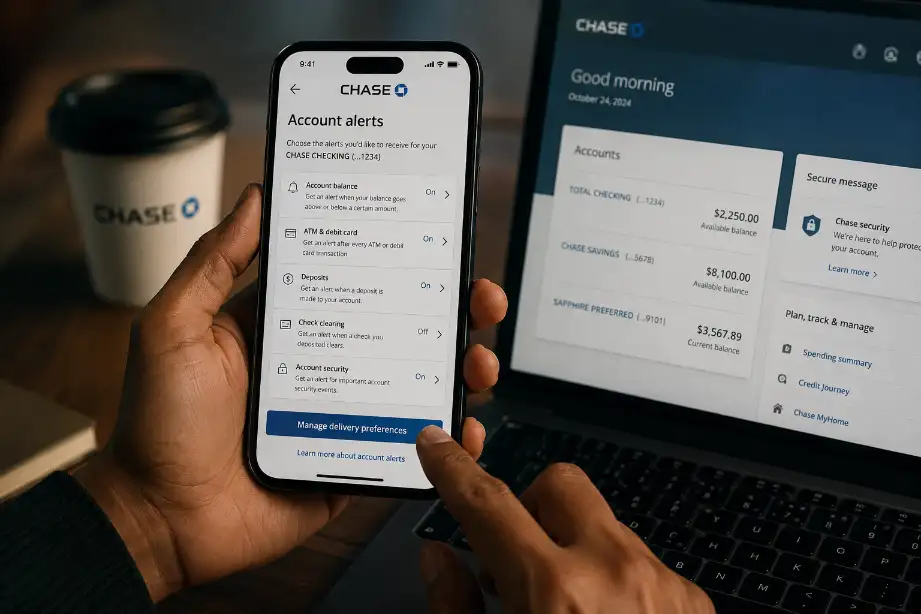
- Low balance alerts
- Large purchase alerts
- Deposit notifications
- Withdrawal notifications
- Credit card payment reminders
- Due date reminders
- Account login alerts
- Unusual activity alerts
Step 5: Customize Alert Settings
Many alerts allow customization.
You can often choose:
- Dollar amount thresholds
- Alert frequency
- Notification method
- Specific account activity triggers
For example, you may receive an alert whenever your checking account balance drops below $100.
Step 6: Select Notification Methods
Choose how you want Chase to contact you.
Options may include:
- Push notifications
- Email alerts
- Text message alerts
Many users select multiple methods to avoid missing important updates.
Step 7: Save Your Preferences
Review your selections and save the changes.
The app will confirm that your alerts have been activated. You can edit or remove them anytime.
Benefits of Using Chase Account Alerts
Account alerts provide several advantages beyond simple notifications.
Better Spending Awareness
Alerts keep you informed about purchases and withdrawals as they happen. You can monitor spending habits and identify unnecessary expenses quickly.
Stronger Account Security
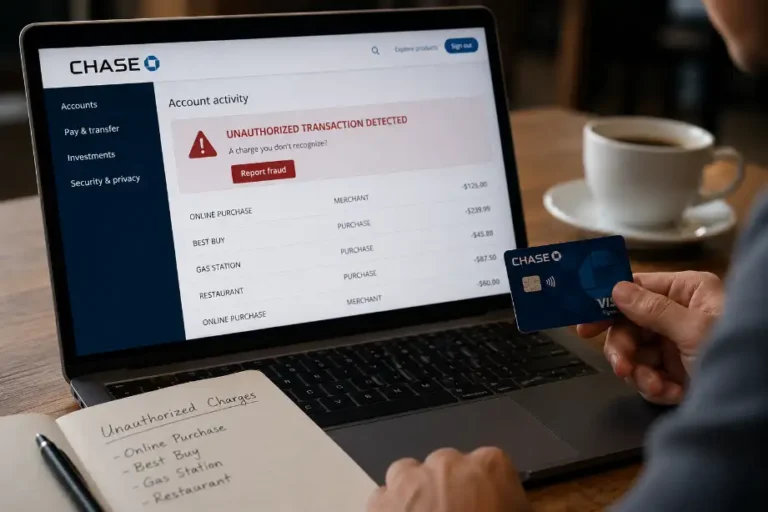
Fraudulent transactions often start with small purchases. Instant notifications help you spot suspicious activity before larger problems occur.
Avoiding Overdraft Fees
Low balance alerts warn you when your account balance reaches a certain level. This warning gives you time to transfer funds or adjust spending.
Never Miss a Payment
Credit card and loan payment reminders help you pay bills on time and avoid late fees.
Easier Budget Management
Regular updates about deposits and withdrawals help you stay within your monthly budget.
Types of Alerts Available in the Chase Mobile App
Chase offers a wide range of alerts for different banking needs.
Balance Alerts
These notifications tell you when your account balance reaches a specific amount.
Examples include:
- Balance below $50
- Balance below $100
- Balance above a chosen amount
Transaction Alerts
Transaction alerts notify you when money enters or leaves your account.
Examples include:
- ATM withdrawals
- Debit card purchases
- Direct deposits
- Transfers
Security Alerts
Security notifications help protect your account.
Examples include:
- Password changes
- Login attempts
- Device registration updates
- Suspicious activity warnings
Credit Card Alerts
Credit card holders can receive notifications about:
- Payment due dates
- Minimum payments
- Large purchases
- Credit limit usage
- Payment confirmations
Tips for Managing Chase Alerts Effectively
Too many alerts can become overwhelming. Use these tips to create a useful notification system.
Focus on Important Alerts
Start with alerts that affect your finances the most.
Examples include:
- Low balance alerts
- Large transaction alerts
- Security alerts
- Payment reminders
Set Realistic Thresholds
Choose dollar amounts that match your spending habits. Very low thresholds may create unnecessary notifications.
Review Alerts Regularly
Check your alert settings every few months. Update them as your financial situation changes.
Enable Push Notifications
Push notifications often arrive faster than email messages. They allow you to respond quickly when account activity occurs.
Use Multiple Notification Channels
Combining push notifications and email alerts provides extra reliability.
Common Problems When Setting Up Chase Alerts
Some users encounter issues while configuring alerts.
Alerts Are Not Arriving
Try the following:
- Verify notification permissions on your phone.
- Confirm your email address and phone number.
- Update the Chase Mobile App.
- Check spam or junk email folders.
Duplicate Notifications
Duplicate messages can occur when multiple notification methods are active for the same alert. Review your settings and remove unnecessary duplicates.
Alert Settings Are Missing
Some alert options depend on account type. Checking accounts, savings accounts, and credit cards may offer different alert selections.
How Chase Alerts Improve Financial Control
Financial management becomes easier when you receive information in real time.
Account alerts help you:
- Track spending instantly.
- Detect unauthorized transactions.
- Monitor account balances.
- Remember payment deadlines.
- Stay informed about deposits.
- Reduce financial surprises.
Small actions taken after receiving an alert can prevent larger financial issues later.
Security Best Practices When Using Mobile Banking Alerts
Alerts work best when combined with good security habits.
Follow these recommendations:
- Use a strong password.
- Enable biometric login if available.
- Keep your app updated.
- Avoid public Wi-Fi when accessing banking information.
- Review account activity regularly.
- Report suspicious transactions immediately.
These habits help keep your Chase accounts secure while maximizing the value of account alerts.
Conclusion
Setting up account alerts in the Chase Mobile App gives you greater visibility into your finances and helps you react quickly to important account activity. Whether you want to monitor spending, avoid overdraft fees, improve account security, or remember payment deadlines, alerts provide timely updates directly to your phone or email.
The setup process takes only a few minutes and offers several customization options to match your financial needs. By choosing the right alerts and reviewing them periodically, you can stay informed, protect your money, and maintain better control over your banking activities every day.
F.A.Q
How do I turn on account alerts in the Chase Mobile App?
Open the app, go to Alerts, select an account, choose alerts, and save your settings.
Are Chase account alerts free?
Yes, Chase provides many account alerts at no extra cost.
Can I receive Chase alerts by text message?
Yes, Chase supports text message alerts for many account activities.
Can I customize low balance alerts?
Yes, you can set your own balance threshold for notifications.
Do Chase alerts help prevent fraud?
Yes, transaction and security alerts help you identify suspicious activity quickly.
Can I disable alerts later?
Yes, you can edit or remove alerts anytime through the app settings.
Will I receive alerts for credit card payments?
Yes, Chase offers payment reminders and payment confirmation alerts.